
Adjustable Desk Phone Stands: How to Set Up Your Screen for Video Calls and Study
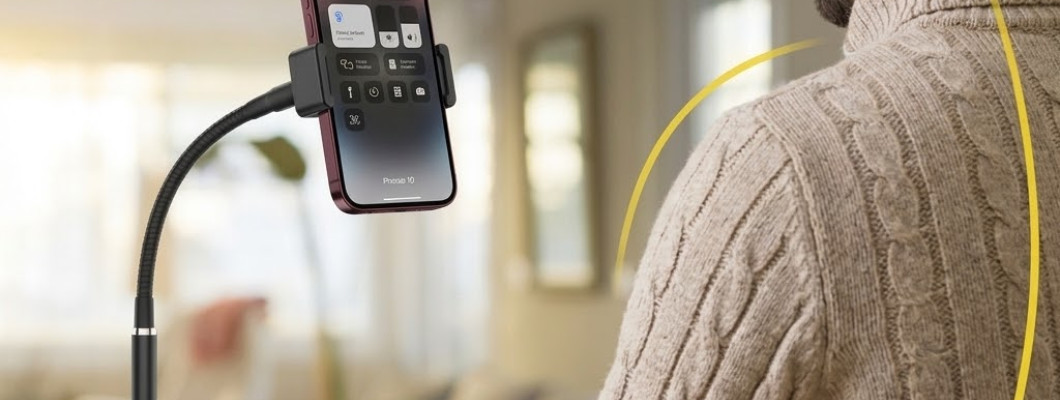
Adjustable Desk Phone Stands: How to Set Up Your Screen for Video Calls and Study
A phone can be easy to read on a desk and still produce an awkward camera view. Raise it for a meeting, and it may suddenly block a document you need. Turn it sideways for a lesson, and the charging lead may end up crossing your notebook.
These are setup problems rather than reasons to keep adjusting everything at once. A height-adjustable desk phone stand gives you options, but the useful arrangement depends on the task, your phone and the surrounding workspace.
This guide explains how to assess an adjustable stand, distinguish screen visibility from camera framing and create a practical routine for calls, study and everyday viewing. The aim is a position you can use and repeat without rebuilding your desk for every activity.
Quick Answer
Choose an adjustable desk phone stand by checking device fit, the height range you actually need and the space available around the base. For video calls, assess the camera preview from your usual seat. For study, arrange your notebook first. Recheck the phone after changing height or orientation, and do not assume the highest position is the most useful one.
Contents
Define the job before choosing the height
Separate camera framing from screen visibility
Check the phone with its normal case
Understand the published product details
Plan the space around the stand
Prepare for a video call
Find a useful viewing position
Switch between portrait and landscape
Move from meetings to study
Use the phone beside a computer
Plan charging, interaction and removal
Review shared use and everyday routines
Checklist and quick answers
Ten frequently asked questions
Step-by-step setup and summary
Define the Job Before Choosing the Height
Start with one sentence: “I want to position my phone so that I can…” Complete it with a specific activity, such as joining a meeting, watching a lesson while taking notes or consulting instructions beside a computer.
That sentence gives you something to test. A meeting setup needs an appropriate camera view. A study setup needs room for writing. A reference screen should remain visible without taking over the main workspace.
Avoid beginning with the highest available setting simply because the stand can extend. More height is useful only when it improves the arrangement for your task.
If the problem is small text, glare or a cluttered desk, changing height may not address it. Identify what you want to improve before choosing which adjustment to make.
Separate Camera Framing from Screen Visibility
During a video call, you see the display while other participants see the camera’s view. Those two perspectives need separate checks.
Open the preview in the application you intend to use. Sit in your normal position and examine what appears in the frame. Check the background as well as your position within it.
Then assess whether you can read the screen and reach the controls you need. A camera arrangement can look suitable while making mute or end-call controls inconvenient to access.
Change one element at a time: the stand’s location, available height or phone orientation. This makes the effect of each adjustment easier to understand.
When the call ends, you can choose a different arrangement for reading or watching. The meeting setup does not need to become a permanent rule.
Check the Phone with Its Normal Case
Assess the device as you expect to use it. Keep the everyday case and any rear attachment included in your initial measurements and description.
A case can affect the phone’s thickness and shape, while a grip or card attachment can change how it sits against the holder. Include these details when asking about compatibility.
Check the positions of buttons, ports and cameras too. The intended grip should not interfere with the functions required for your activity.
If holder dimensions are unavailable, request the relevant measurements before buying. “Will it fit my phone?” is easier to answer accurately when accompanied by the device’s actual configuration.
Do not assume that removing the case will become a convenient daily routine. Choose an arrangement that suits the way you prefer to use your device.
Understand the Published Product Details
K&M Shopping lists an adjustable desktop phone stand with a circular base, height adjustment and a head that rotates through 360 degrees. It supports portrait and landscape phone positioning.
The published information does not state the exact height range, holder width, overall dimensions, material or load capacity. These details should not be estimated from photographs.
You can review the product here:
https://k-m.store/shop/en/mobile-accessories/w-mobile-stand-for-office-and-home
If reaching a particular camera position is essential, ask for the minimum and maximum usable heights before deciding. The presence of an adjustment mechanism does not establish how far it travels.
Likewise, confirm device compatibility rather than interpreting a general smartphone description as a guarantee for every phone and case combination.
Plan the Space Around the Stand
Place the tools for your activity on the desk before choosing the stand location. Open the notebook, position the keyboard and leave room for the mouse or documents.
Now consider the space occupied by both the base and the mounted phone. Landscape positioning may require clearance that was unnecessary when the device was upright.
Rehearse ordinary movements. Turn a page, reach for a pen and pull the chair into its normal position. If the phone sits in a repeated movement path, change the layout before beginning.
Choose a place for the phone when you remove it as well. This prevents the end of a session from becoming a search for any available surface.
A useful setup includes the working position, surrounding movements and the transition back to handheld use.
Prepare for a Video Call Before Joining
Use the actual meeting application for the final check. Review the preview and arrange the background while you still have time to make changes.
Connect any headphones you intend to use. Place notes where you can consult them without moving the stand or reaching across the screen.
Try the controls you expect to need. Check how you will mute the microphone, adjust the application view and leave the call.
A short rehearsal can include reading a line from your notes and returning attention to the screen. Notice whether the layout requires repeated repositioning.
You do not need a complicated recording arrangement for an ordinary conversation. You need a clear view, access to essential controls and a desk that remains usable while you speak.
Find a Useful Viewing Position
Begin from your normal seated position. Assess the screen or camera result from there rather than arranging the stand while standing and hoping it will work later.
Make a small change, then review the result. If you alter the height, desk location and orientation simultaneously, it becomes harder to identify which change helped.
For substantial reconfiguration, remove the phone and follow the product’s adjustment instructions. Reassess the device when it is placed back in the holder.
Do not improvise extra height by stacking loose objects under the base. If the stand cannot reach the position your task requires, consider equipment with a documented range that can.
The most useful setting is the one that supports the activity within the product’s intended operation.
Switch Between Portrait and Landscape Deliberately
Let the content guide the orientation. A document, conversation and widescreen lesson may each benefit from a different view.
After turning the phone, check the space beside it. The wider arrangement could overlap a computer screen, notebook or normal hand movement.
Revisit port access and any cable route too. A lead that was unobtrusive in portrait orientation may need a different path afterwards.
If the application does not display content as expected, check its available view controls or the phone’s orientation settings before making more physical adjustments.
Rotation provides a choice of presentation. It does not remove the need to evaluate the resulting desk arrangement.
Move from Meetings to Study with a Brief Reset
At the end of a call, put away meeting notes and prepare the materials for the next task. This creates a natural moment to reconsider the phone position.
Open the notebook to the page you will use and start the lesson or reading material. Try watching a section, pausing and writing a short note.
If you will interact with playback controls frequently, make that part of the assessment. A distant screen may look tidy while requiring an inconvenient reach every few minutes.
Consider the content itself before changing the stand. Text size, zoom or a different application view may improve readability without moving the device.
The goal is to support the study sequence, including writing and reviewing, rather than merely displaying the lesson above the desk.
Use the Phone Beside a Computer with a Defined Role
Decide which task belongs on each screen. Perhaps the computer holds the document you are editing while the phone displays a reference or hosts a call.
Place the phone where it does not obscure the main screen or occupy the area needed for typing. Evaluate this with the computer and other equipment in their normal positions.
If the phone is running the call, review its camera preview while the rest of the workspace remains in use. A layout designed around an empty desk can change once you begin working.
Also decide which notifications are relevant to the session. Keeping the phone visible does not require responding to every alert.
A defined role makes the second screen useful rather than another source of repeated interruptions.
Plan Charging and Removal Together
Before a session that needs charging, check the space around the port and connector. Phone fit does not automatically establish cable compatibility.
Route the lead so it does not cross the writing area or catch on moving objects. Recheck it after adjusting height or orientation.
Follow the instructions for the phone and charging equipment. The stand is not a power source and does not establish which charger should be used.
Think about removal as part of the same plan. You may need to leave the desk, take a private call or switch to handheld interaction.
Know where you will place the device and whether it should be disconnected first. A practical arrangement should not make the cable an obstacle to finishing the activity.
Distinguish Viewing from Frequent Touch Interaction
A setup that works for watching a video may feel different when you begin typing a long message or navigating through several menus.
Test the interaction your task actually requires. Do not judge suitability only while the phone is displaying an unmoving screen.
If touching the device produces unwanted movement, secure the phone and reassess the arrangement. Do not continue applying pressure to compensate.
It is reasonable to remove the phone for longer interactions and return it afterwards. The stand does not need to support every moment of a session to be useful.
If intensive touch input is the main activity, consider whether another way of working would suit it better. Select around the dominant task rather than an occasional viewing scenario.
Make Shared Use a Fresh Setup
Two people can share a workspace while using different phones, cases and seating positions. Treat the previous arrangement as a starting point rather than a confirmed fit.
After the first device is removed, check the next phone’s compatibility and the space required for its intended task.
For calls, open the preview again. A different camera position or seat location can change the image even if the stand remains untouched.
Agree on where the accessory belongs when neither person is using it. This avoids moving it repeatedly between another person’s papers or work area.
Shared use is simpler when everyone knows the adjustment and removal routine and does not assume that another device’s successful setup proves their own.
Avoid Common Adjustment Mistakes
Choosing maximum height automatically
Start with the result you need on the display or camera preview. Maximum extension is not a target.
Guessing unpublished measurements
Ask for the dimensions that determine your decision rather than estimating them from photographs.
Ignoring the case
Include the phone’s everyday attachments in the compatibility assessment.
Changing everything at once
Adjust one relevant factor, review the result and continue from there.
Using height to solve another problem
Small text, an unsuitable background or a crowded desk may need a different response.
Forgetting the transition between tasks
A meeting and a writing session can require different arrangements.
Keeping a setup after the equipment changes
Reassess after replacing the phone, case, chair or desk layout.
Build a Short Daily Routine
At the start of a session, identify the main activity and check what has changed since the last use. You do not need an elaborate ritual, but you should notice differences that affect the arrangement.
Keep related items, such as headphones, notes and cables, in accessible places. Remove objects that have accumulated around the base without serving the current task.
When finished, remove the phone before relocating the stand and organise any connected lead.
During your regular desk tidy-up, review whether the holder is helping with a clear activity. If it is repeatedly moved aside, reconsider its position.
Follow the product’s care guidance, and stop using a damaged or loose arrangement that no longer supports the device appropriately.
Before-Use Checklist
The main activity is defined.
The phone has been assessed with its case and attachments.
Any essential unpublished measurement has been clarified.
The base has an appropriate desktop location.
The phone has clearance in the chosen orientation.
Camera framing has been checked when relevant.
Notes, keyboard and other tools remain accessible.
Required buttons and ports can be reached.
Any cable has a practical route.
The device can be removed without an awkward sequence.
The arrangement has been reassessed after adjustment.
Compatibility with other devices has not been assumed.
Quick Answers
Best starting point
Choose the activity, then assess the setup from your normal seat.
When exact height measurements matter
Ask for them when the purchase depends on reaching a particular camera or screen position.
Best check before a call
Open the application preview and test access to the controls.
When another design may be preferable
Choose differently when the task requires a mounting method, device size or position that has not been confirmed.
Frequently Asked Questions
Does adjustable height mean the stand reaches any level I need?
No. Adjustment has a limited range, and the exact range is not published here. Ask for the measurements if a specific position is essential.
Should every video call use portrait orientation?
Choose according to the application and framing you need. Check the actual preview rather than treating one orientation as a universal rule.
Will a bulky phone case fit?
That requires confirmation of the holder’s dimensions and the phone’s complete shape. Include rear attachments and raised features when assessing compatibility.
Can this stand hold a tablet?
Tablet compatibility is not established by the available specifications. Choose equipment with confirmed suitability for the intended device and weight.
Does 360-degree rotation automatically frame the camera?
No. Rotation is a mechanical adjustment. You still need to review the image and choose the arrangement appropriate to your call or recording.
Can I type while the phone is mounted?
Assess the actual interaction and stability. If it is unsuitable, remove the device for typing rather than continuing to push against the arrangement.
Can I charge the phone during use?
Check connector clearance and cable routing, then follow the phone and charger instructions. Compatibility should not be assumed for every case and lead.
Will the stand need assembly?
If it arrives in separate parts, follow the supplied configuration and instructions. Do not infer assembly details solely from a general product photograph.
Is a desktop stand suitable for use in a car?
This product is intended for stable desktop use. Select a dedicated, compatible vehicle holder for that purpose rather than transferring assumptions from a desk setup.
When should I repeat the setup checks?
Recheck after changing the device, case, seating position or workspace, and when the main activity changes enough to require a different arrangement.
Step-by-Step: Set Up Your First Session
Step 1: Choose one task
Start with a meeting, lesson or reference-viewing activity.
Step 2: Prepare the equipment
Include the phone’s normal case and any accessories needed for the session.
Step 3: Review compatibility
Clarify missing measurements that affect the decision.
Step 4: Arrange the desk
Give notes and working tools their space before positioning the stand.
Step 5: Configure the holder
Follow the supplied instructions and adjust the setup before placing the phone.
Step 6: Check the real content
Open the lesson, document or camera preview.
Step 7: Rehearse normal actions
Try controls, note-taking and removal.
Step 8: Review the result
Keep the arrangement that serves the task and reassess when something changes.
Conclusion
A height-adjustable desk phone stand is most useful when it supports a defined activity within a workable desk layout. Screen visibility, camera framing, device fit and ordinary hand movements all deserve consideration.
Start with the measurements and compatibility details that matter to your phone. Then test the actual task rather than judging the setup from its appearance.
For phone accessories and practical desk products, browse K&M Shopping:
Quick Summary
Choose the task before choosing the height.
Assess camera framing separately from screen readability.
Include the case and attachments in compatibility checks.
Do not guess unpublished height or load limits.
Recheck clearance and cables after changing orientation.
Review the setup when equipment or activities change.
Read Also
Airplane and Desk Phone Holders: Fit and Setup Guide
https://k-m.store/shop/en/airplane-desk-phone-holder-fit-setup-guide
This related guide considers a portable mounting approach. Compare its requirements separately if your use extends beyond a dedicated home or office desk.
Leave a Comment